Copy Text from a Screenshot on Windows: the OCR Tools Compared
You've got text trapped in an image — a screenshot, a scan, a video frame, a PDF you can't select — and you need it as real, pasteable text. The fix is region OCR: draw a box over the text and a tool reads it. Windows has more options than people realise, several of them free. Here's what to use and when.
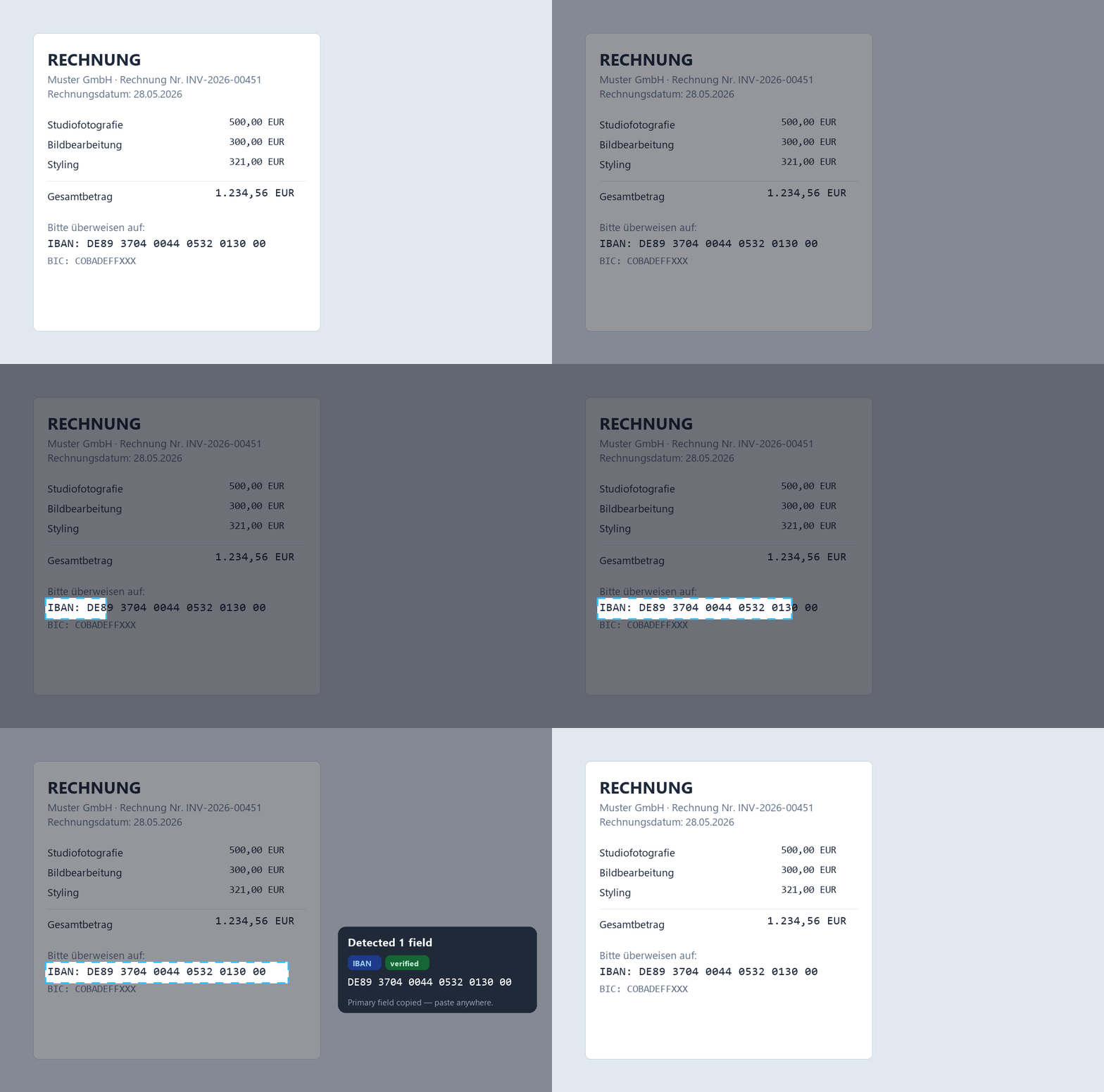
Snip2Field is a Windows region-OCR tool aimed at finance and admin data: hotkey, drag a box over an IBAN, amount, date or invoice number anywhere on screen, and it detects the field type, validates IBAN checksums, copies the result, and works fully offline.
What is region OCR?
Instead of converting a whole file, region OCR reads just the rectangle you select on screen and puts the text on your clipboard. It works on anything visible — apps, images, PDFs, remote-desktop windows — because it reads pixels, not the file. That makes it the quickest way to grab one line or number.
Built in & free — Snipping Tool + PowerToys
Windows 11's Snipping Tool now has a "Text Actions" button that extracts text from any snip. Microsoft's free PowerToys adds Text Extractor (press Win+Shift+T, drag a box, text is copied). Both are excellent general-purpose options and cost nothing — if you just need arbitrary text now and then, start here.
Free & niche — Capture2Text / Text Grab
Capture2Text and Text Grab are small free tools with extra languages and tweaks. Handy if you OCR non-Latin scripts or want a lighter standalone app, though they're less polished than the Microsoft options.
When the text is structured data — Snip2Field
General OCR tools give you raw text and stop there. Snip2Field is built for the finance/admin case: it recognises the field type (IBAN, amount, date, invoice number), validates IBAN checksums so you never paste a wrong account number, and is fully offline. If that's your job, the difference matters — see copying an IBAN from a PDF.
- Press the hotkey (Ctrl+Shift+P).
- Drag a box over the text or number.
- It reads it, detects the field type, and copies it.
| Tool | Free | Offline | Field detection | IBAN checksum | Best for |
|---|---|---|---|---|---|
| Windows Snipping Tool | ✓ | ✓ | ✗ | ✗ | Quick plain text |
| PowerToys Text Extractor | ✓ | ✓ | ✗ | ✗ | General region OCR |
| Capture2Text | ✓ | ✓ | ✗ | ✗ | Extra languages, niche |
| Snip2Field | Trial, $14 | ✓ | ✓ IBAN/amount/date | ✓ | Invoice / finance data |
Working from PDFs specifically? See extracting text from a scanned PDF and copying invoice data without retyping.
OCR built for numbers, not just text
Snip an IBAN, amount or date off any screen — field-detected, checksum-verified, offline.
Try Snip2Field free7-day free trial · $14 once · Windows
FAQ
- What's the best free way to copy text from a screenshot on Windows?
- Windows 11 Snipping Tool's Text Actions, or PowerToys Text Extractor (Win+Shift+T). Both are free and built/backed by Microsoft.
- Does Windows have built-in OCR?
- Yes — the Windows 11 Snipping Tool can extract text from a snip, and PowerToys adds a region extractor. For plain text they're plenty.
- Why use Snip2Field instead of a free OCR tool?
- When the text is financial data: it detects field types and validates IBAN checksums so you don't paste a wrong account number, and it runs offline. For arbitrary text, the free tools are fine.
- Does region OCR work offline?
- Snip2Field and Capture2Text run locally. Some tools call a cloud service — check before using one on sensitive documents.