How to Extract Text from a Scanned PDF on Windows
A scanned PDF looks like a document but behaves like a photo: you can't select a word, can't search it, can't copy a line. To get the text out you have to run OCR — and which method is best depends on whether you need the whole document or just one field. Here are three routes, free and paid.
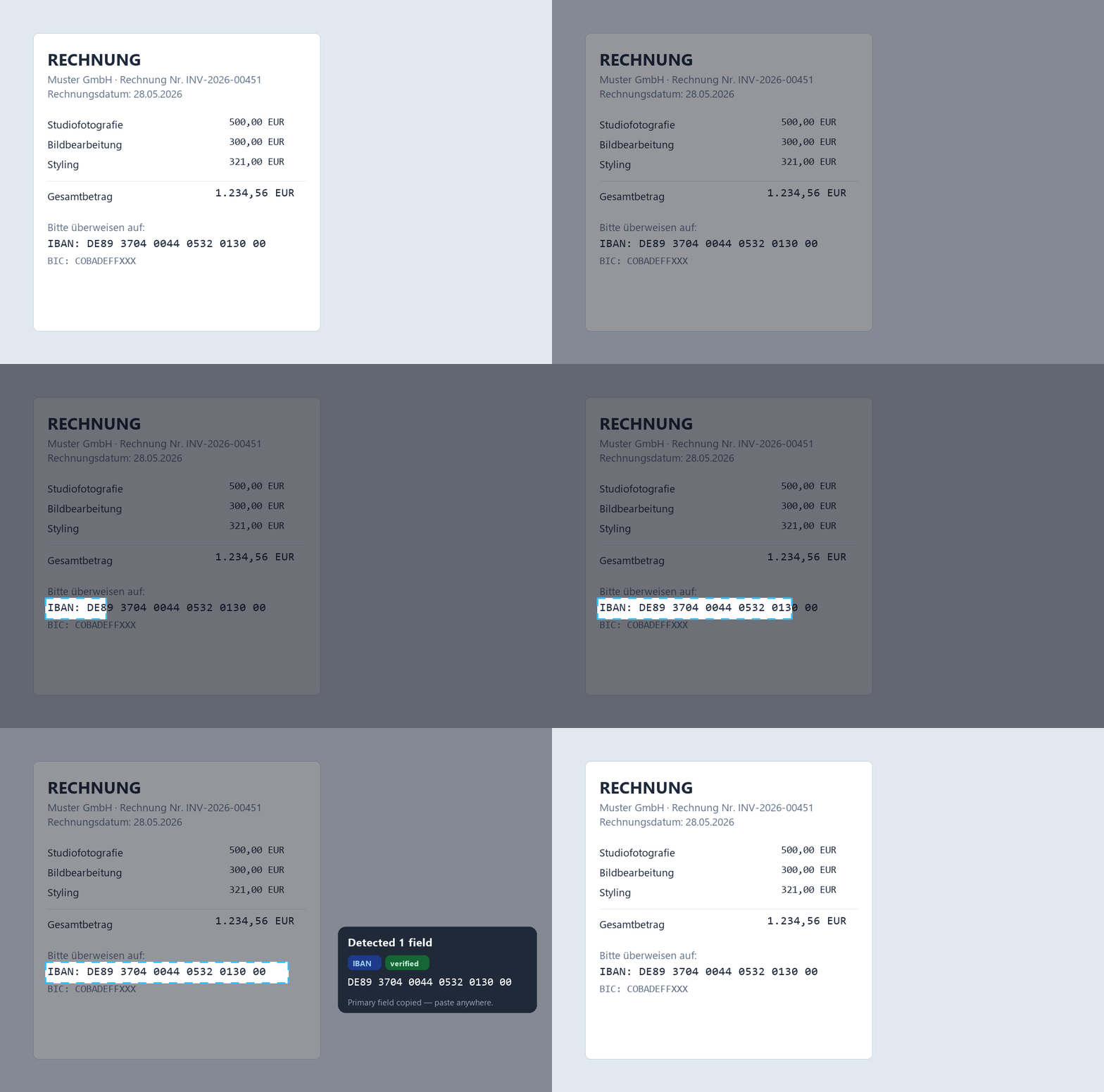
Snip2Field is a Windows app that does region OCR: press a hotkey, drag a box over any text or number in a scanned PDF, and it reads just that area and copies it — checksum-validating IBANs and running fully offline.
Why can't I select the text in a scanned PDF?
Because the page is an image, not text. A scanner (or a "Print to PDF" from a photo) stores the page as pixels, so there are no characters underneath to select. OCR — optical character recognition — looks at those pixels and works out what letters and numbers they represent, turning the picture back into real text.
Free, whole document — Google Docs
Upload the PDF to Google Drive, right-click it and choose Open with → Google Docs. Google runs OCR and gives you an editable document with the recognised text below a copy of each page. It's free, surprisingly accurate, and good when you need the entire document as text. The trade-off: layout (tables, columns) often comes out messy.
Paid, keeps the layout — Adobe Acrobat
Acrobat Pro's Scan & OCR → Recognize Text makes a scanned PDF searchable and selectable in place, preserving the original look. It's the cleanest option for whole documents if you already pay for Acrobat — overkill if you just need one number off one invoice.
Just one field — snip it (the fast way)
Converting a whole document is wasted effort when all you want is the total, a date or an account number. A region-OCR tool reads just the box you draw. Snip2Field is a small Windows tool for this — and if the field you keep needing is a bank account number, see the focused guide on copying an IBAN from a PDF.
- Press a hotkey (Ctrl+Shift+P).
- Drag a box over the text you need.
- It OCRs that region and copies the result — ready to paste.
| Method | Cost | Best for | Keeps layout |
|---|---|---|---|
| Google Docs OCR | Free | Whole document | ✗ (often messy) |
| Adobe Acrobat | Paid | Whole document, in place | ✓ |
| Region OCR (Snip2Field) | Trial, then $14 | One field, fast | n/a — single field |
0/8 changes the value silently. Snip2Field validates IBANs against the ISO 13616 checksum and flags reads it can't verify, so a wrong account number isn't handed to you as if it were correct. For other figures, always sanity-check against the source.The same snip works for amounts, dates and invoice numbers, and for any on-screen text — see copying text from a screenshot.
Need just one field, fast?
Snip any number or line off a scanned PDF — checksum-verified for IBANs, fully offline.
Try Snip2Field free7-day free trial · $14 once · Windows
FAQ
- What's the easiest free way to extract text from a scanned PDF?
- For a whole document, upload it to Google Drive and open it with Google Docs — it OCRs the file for free. For a single field, a region-OCR tool is faster.
- Will OCR keep the formatting of my PDF?
- Google Docs often loses tables/columns. Adobe Acrobat's Recognize Text keeps the layout in place. If you only need a value, layout doesn't matter — just snip the field.
- Is it safe to use an online OCR converter for an invoice?
- Be careful — online converters upload your file. For documents with bank or client data, use an offline tool like Snip2Field so nothing is uploaded.
- How accurate is OCR on numbers?
- Good but not perfect — small digits get confused. Always verify financial figures. Snip2Field checksum-validates IBANs and warns on unverified reads.