How to Copy an IBAN (or Any Text) from a PDF You Can't Select
You open an invoice, you need the IBAN, and the PDF won't let you select a thing. You squint at a 22-character account number in 8-point font and start typing it by hand — and one wrong digit means the payment goes nowhere. Here's why it happens and three ways to get the IBAN (or the amount, or the date) out cleanly.
Snip2Field is a Windows app that copies data off invoices and PDFs: press a hotkey, drag a box over an IBAN, amount, date or invoice number, and it OCRs that region and copies it — validating the IBAN checksum and running fully offline.
Why won't the PDF let me copy the text?
Because the page is an image, not text. Many invoices are scanned, photographed, or exported as a picture. What looks like text is actually pixels, so there are no characters to select. To copy it you have to turn those pixels back into text — that's what OCR (optical character recognition) does.
Method 1 — Retype it by hand (the painful way)
Zoom in to 200–400% so the small digits are legible, then type the IBAN carefully and double-check every group of four. It works, but it's slow and error-prone, and IBANs are exactly the kind of long string where one transposed digit is easy to miss.
Method 2 — Run the whole PDF through an OCR converter
Tools like Adobe Acrobat's "Recognize Text", or free online OCR converters, turn the whole document into selectable text. Fine for whole documents, but overkill when you need one field — and uploading an invoice with bank details to a random web converter is a privacy risk you probably want to avoid.
Method 3 — Snip just the field you need (the fast way)
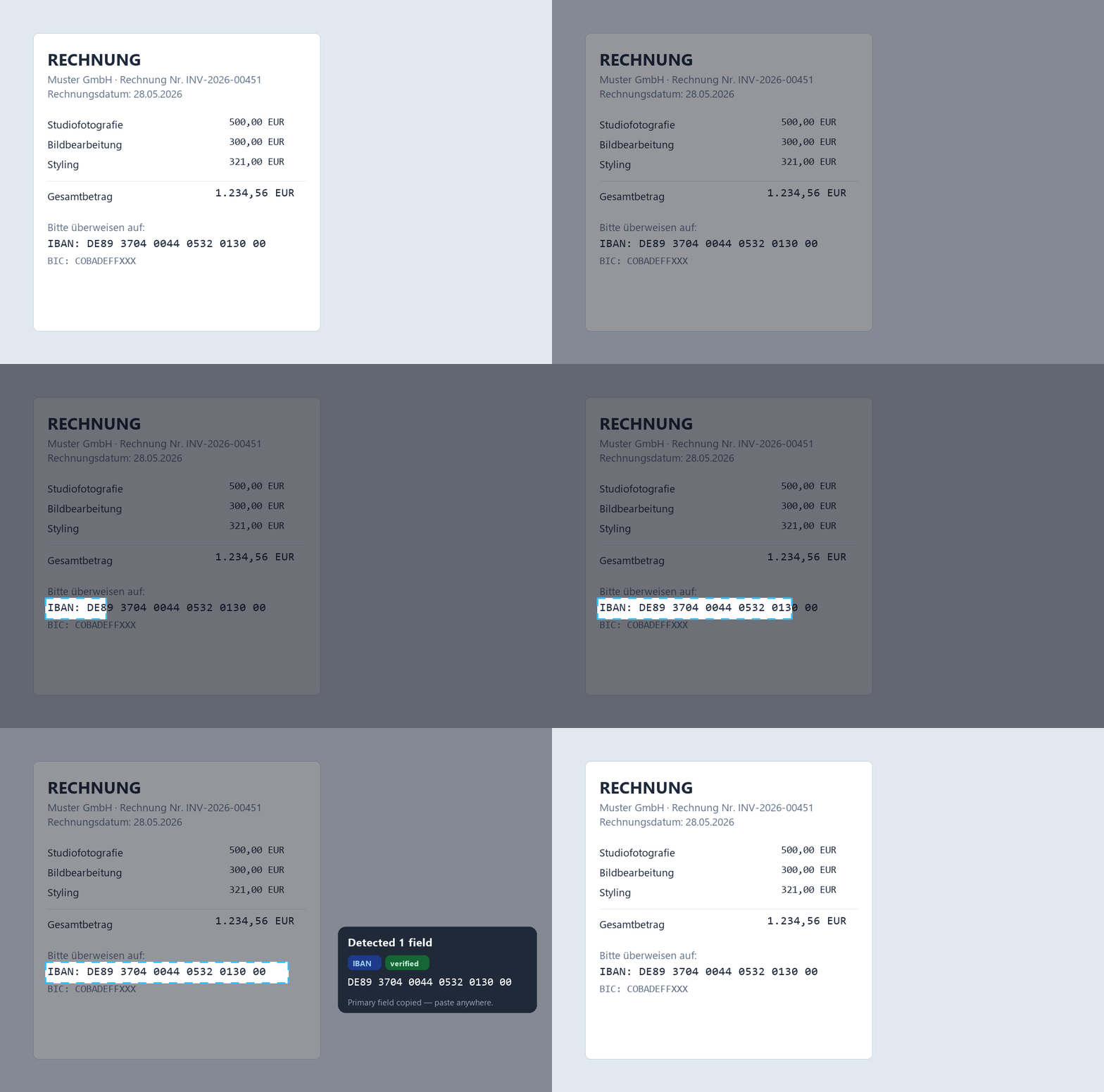
If you do this often, snipping a single region is much faster than converting the whole page. Snip2Field is a small Windows tool built for exactly this:
- Press a hotkey (Ctrl+Shift+P).
- Drag a box over the IBAN.
- It OCRs that region, recognises it's an IBAN, and copies it — ready to paste.
| Method | Speed | Risk of a wrong IBAN |
|---|---|---|
| Retype by hand | Slow | High — easy to transpose a digit |
| OCR the whole PDF | Medium | Medium — you still eyeball it |
| Snip the IBAN (Snip2Field) | Fast | Low — checksum-verified |
0 becomes @ or 9), so if it isn't sure, it tells you and won't auto-copy a read it couldn't verify. You should never have a wrong account number silently handed to you.It also recognises amounts, dates, and invoice numbers.
Stop hand-typing IBANs off invoices
Snip any IBAN, amount or date off your screen — checksum-verified, fully offline.
Try Snip2Field free7-day free trial · $14 once · Windows
FAQ
- Why can't I select or copy text in a PDF?
- The PDF is image-based (scanned or exported as a picture), so the "text" is really pixels with no selectable characters. You need OCR to turn them back into text.
- How do I copy an IBAN from a scanned invoice?
- Use an OCR tool to read the IBAN region. Snip2Field lets you drag a box over the IBAN and copies it, validating the checksum so you don't paste a wrong account number.
- Is it safe to OCR an invoice with bank details?
- With Snip2Field, yes — it runs fully offline, so your bank details never get uploaded anywhere. Be careful with online OCR converters that upload your file.
- How do I make sure the IBAN was read correctly?
- Always confirm against the source document. Snip2Field checks the IBAN's mod-97 checksum and flags any read it couldn't verify.